• About Me Card

Max Hemingway

~ Musings as I work through life, career and everything.

Max Hemingway

Tag Archives: Programming

Site Reliability Engineering by Google

03 Friday Feb 2017

Posted by Max Hemingway in Digital, Productivity, Programming, Tools

≈ Leave a comment

Tags

Coding, Digital, Productivity, Programming

learnHaving read this book previously its good to see that it is now available from Google on-line for reading/reference. The book itself is a collection of articles and essays on how Google run and maintain their computing systems by their Site Reliability Engineers.

The book can be accessed at  https://landing.google.com/sre/book/

List of the Table of Contents showing the articles and essays in the book.

Table of Contents
Foreword
Preface
Part I – Introduction
Chapter 1 – Introduction
Chapter 2 – The Production Environment at Google, from the Viewpoint of an SRE
Part II – Principles
Chapter 3 – Embracing Risk
Chapter 4 – Service Level Objectives
Chapter 5 – Eliminating Toil
Chapter 6 – Monitoring Distributed Systems
Chapter 7 – The Evolution of Automation at Google
Chapter 8 – Release Engineering
Chapter 9 – Simplicity
Part III – Practices
Chapter 10 – Practical Alerting
Chapter 11 – Being On-Call
Chapter 12 – Effective Troubleshooting
Chapter 13 – Emergency Response
Chapter 14 – Managing Incidents
Chapter 15 – Postmortem Culture: Learning from Failure
Chapter 16 – Tracking Outages
Chapter 17 – Testing for Reliability
Chapter 18 – Software Engineering in SRE
Chapter 19 – Load Balancing at the Frontend
Chapter 20 – Load Balancing in the Datacenter
Chapter 21 – Handling Overload
Chapter 22 – Addressing Cascading Failures
Chapter 23 – Managing Critical State: Distributed Consensus for Reliability
Chapter 24 – Distributed Periodic Scheduling with Cron
Chapter 25 – Data Processing Pipelines
Chapter 26 – Data Integrity: What You Read Is What You Wrote
Chapter 27 – Reliable Product Launches at Scale
Part IV – Management
Chapter 28 – Accelerating SREs to On-Call and Beyond
Chapter 29 – Dealing with Interrupts
Chapter 30 – Embedding an SRE to Recover from Operational Overload
Chapter 31 – Communication and Collaboration in SRE
Chapter 32 – The Evolving SRE Engagement Model
Part V – Conclusions
Chapter 33 – Lessons Learned from Other Industries
Chapter 34 – Conclusion
Appendix A – Availability Table
Appendix B – A Collection of Best Practices for Production Services
Appendix C – Example Incident State Document
Appendix D – Example Postmortem
Appendix E – Launch Coordination Checklist
Appendix F – Bibliography

Share this:

  • Click to share on Facebook (Opens in new window) Facebook
  • Click to share on LinkedIn (Opens in new window) LinkedIn
  • Click to email a link to a friend (Opens in new window) Email
  • Click to share on Pinterest (Opens in new window) Pinterest
  • Click to share on Reddit (Opens in new window) Reddit
  • Click to share on Tumblr (Opens in new window) Tumblr
  • Click to share on Pocket (Opens in new window) Pocket
  • Click to share on Telegram (Opens in new window) Telegram
  • Click to share on Threads (Opens in new window) Threads
  • Click to share on WhatsApp (Opens in new window) WhatsApp
  • Click to share on Mastodon (Opens in new window) Mastodon
  • Click to share on X (Opens in new window) X
  • Click to share on Bluesky (Opens in new window) Bluesky
Like Loading...

Tiny computing – VoCore2

06 Sunday Nov 2016

Posted by Max Hemingway in Development, IoT, Open Source, Programming

≈ Leave a comment

Tags

Development, IoT, Open Source, Programming

split1.pngSearching round on the crowdfunding sites for things that are coming, I found the VoCore2 on iniegogo.

https://www.indiegogo.com/projects/vocore2-4-coin-sized-linux-computer-with-wifi#/

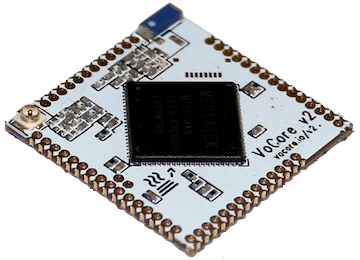
VoCore has already had an v1 early release and is now heading for a v2 release in January 2017. The cost of this board is $4, although as you start to add the additional boards the cost can go up to around $50.

VoCore2 is a open source linux computer and a full functional wireless router but its size is smaller than a coin. It can perform as a VPN gateway to secure your network, an airplay station to play loseless music, a private cloud to store your photo, video and code. Benefit for its small size and low power consume, it can be easily mounted in wall, help you boost wireless signal in every room or setup house based mesh network.

What I do like about this design is that its small and compact and can be used for a lot of different purposes:

  • VPN Router
  • IoT/Appliance Control
  • Music Player/Streaming
  • Wifi

Its ability to be added to an existing ethernet socket and add heaps of functionality to the socket and its open source makes this device interesting for me, as well as its ability to then act as a wifi extender from that socket.

I would like to look at what could be done with it to provide additional IoT Security to a device plugged in/connected to a network utilising this board. So looks like another board on the wish list to have a go on.

Pin Outs for the board:

vocore

Source/Pics: https://www.indiegogo.com/projects/vocore2-4-coin-sized-linux-computer-with-wifi#/


Share this:

  • Click to share on Facebook (Opens in new window) Facebook
  • Click to share on LinkedIn (Opens in new window) LinkedIn
  • Click to email a link to a friend (Opens in new window) Email
  • Click to share on Pinterest (Opens in new window) Pinterest
  • Click to share on Reddit (Opens in new window) Reddit
  • Click to share on Tumblr (Opens in new window) Tumblr
  • Click to share on Pocket (Opens in new window) Pocket
  • Click to share on Telegram (Opens in new window) Telegram
  • Click to share on Threads (Opens in new window) Threads
  • Click to share on WhatsApp (Opens in new window) WhatsApp
  • Click to share on Mastodon (Opens in new window) Mastodon
  • Click to share on X (Opens in new window) X
  • Click to share on Bluesky (Opens in new window) Bluesky
Like Loading...

Boiling Frogs

30 Friday Sep 2016

Posted by Max Hemingway in Development, DevOps/OpsDev, Programming

≈ Leave a comment

Tags

Development, DevOps, OpsDev, Programming

GrowIf you haven’t read “Boiling Frogs” by the GCHQ, its is well worth a read. The paper has been made available on GitHub – this is their research paper on software development and organisational change in the face of disruption.

To quote the Exec Summary:

This paper identifies and examines critical business characteristics that promote business and technical agility describing how organisations need “less of” some characteristics and “more of” others. Rather than changing one of these characteristics in isolation, we believe that organisations need to improve holistically, not in terms of a binary step change, but in terms of force-multiplying cohesive change. For each characteristic, we propose a direction of change covering:
• Operating Model (including structure and interaction styles)
• Organisational cultures
• Use of accommodation
• Approach to measurement
• Skills management
• Use of commercial suppliers
• Leveraging Big Data
• Approach to architecture
• Use of processes and techniques
• Approach to Security
• Approach to HR
Finally, this paper includes some of the background reasoning collated from internal blogs related to organisational structuring, types of jobs and the effects of Conway’s Law on business change.

Source: GCHQ Boiling Frog

Conways law states:

organizations which design systems … are constrained to produce designs which are copies of the communication structures of these

The law is based on the reasoning that in order for a software module to function, multiple authors must communicate frequently with each other. Therefore, the software interfaces structure of a system will reflect the social boundaries of the organization(s) that produced it, across which communication is more difficult. Conway’s law was intended as a valid sociological observation, although sometimes it’s taken in a humorous context.

Source: Wikipedia

The paper can be found at https://github.com/gchq/BoilingFrogs

Share this:

  • Click to share on Facebook (Opens in new window) Facebook
  • Click to share on LinkedIn (Opens in new window) LinkedIn
  • Click to email a link to a friend (Opens in new window) Email
  • Click to share on Pinterest (Opens in new window) Pinterest
  • Click to share on Reddit (Opens in new window) Reddit
  • Click to share on Tumblr (Opens in new window) Tumblr
  • Click to share on Pocket (Opens in new window) Pocket
  • Click to share on Telegram (Opens in new window) Telegram
  • Click to share on Threads (Opens in new window) Threads
  • Click to share on WhatsApp (Opens in new window) WhatsApp
  • Click to share on Mastodon (Opens in new window) Mastodon
  • Click to share on X (Opens in new window) X
  • Click to share on Bluesky (Opens in new window) Bluesky
Like Loading...

Raspberry Pi and New Starter Kit

14 Wednesday Sep 2016

Posted by Max Hemingway in Development, IoT, Programming, Raspberry Pi

≈ Leave a comment

Tags

Development, IoT, Programming, RaspberryPI

PIRaspberry Pi has reached a staggering 10 Million Pi devices.

It’s a long way from the reports back in May 2012 that 20,000 units had been shipped.

Moving from their bare bone boards and then buying a starter kit from 3rd parties to get you going on a Pi Adventure. Raspberry Pi are now producing  their own Starter Kit which includes the following:

  • A Raspberry Pi 3 Model B
  • An 8GB NOOBS SD card
  • An official case
  • An official 2.5A multi-region power supply
  • An official 1m HDMI cable
  • An optical mouse and a keyboard with high-quality scissor-switch action
  • A copy of Adventures in Raspberry Pi Foundation Edition

For me the best project that I have undertaken yet is the Amazon Alexa on the Pi3. However there are some others that I want to get round to such as

Jarvis Home Automation

https://hackaday.io/project/1214-project-jarvis-ai-home-automation-assistant

Multi Room Music Player

http://www.instructables.com/id/Raspberry-Pi-Multi-Room-Music-Player/

Gamer Coffee Table

http://www.instructables.com/id/Coffee-Table-Pi/

If your stuck for project ideas with your Pi, here is a link to 682 projects from Hackerday

https://hackaday.io/projects/tag/raspberry%20pi

Share this:

  • Click to share on Facebook (Opens in new window) Facebook
  • Click to share on LinkedIn (Opens in new window) LinkedIn
  • Click to email a link to a friend (Opens in new window) Email
  • Click to share on Pinterest (Opens in new window) Pinterest
  • Click to share on Reddit (Opens in new window) Reddit
  • Click to share on Tumblr (Opens in new window) Tumblr
  • Click to share on Pocket (Opens in new window) Pocket
  • Click to share on Telegram (Opens in new window) Telegram
  • Click to share on Threads (Opens in new window) Threads
  • Click to share on WhatsApp (Opens in new window) WhatsApp
  • Click to share on Mastodon (Opens in new window) Mastodon
  • Click to share on X (Opens in new window) X
  • Click to share on Bluesky (Opens in new window) Bluesky
Like Loading...

BBC Micro:Bit available for the masses

29 Wednesday Jun 2016

Posted by Max Hemingway in IoT, Micro:Bit, Programming

≈ 1 Comment

Tags

Development, IoT, Micro:Bit, Programming

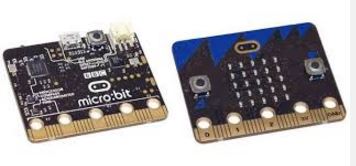
MicroBitIts been a while now since the launch of the BBC Micro:Bit and its mission to provide year 7’s with the platform.  It is only recently being made available to the general public in batches of 90 , however this has now shifted to being able to purchase single units and development kits are also being produced/made available for pin outs and expansions. I’ve seen several dates for availability in several online shops from end of June to end of July. Most places have the Micro:Bit on pre-order only at the moment, but peripherals are available to ship.

Coming in at around £13.00 for a board its more expensive than the Pi Zero at £5.00. I was expecting something of a similar price bracket. There are some interesting projects already appearing on the web.

(Other online outlets are available) One outlet stocking the Micro:Bit shortly https://shop.pimoroni.com/products/microbit

I have placed a pre-order for one to have a go with, so will post some more about it once received. Im looking to use the Micro:Bit and Pi Zero to help my Scout Group with their Digital Maker and Digital Citizen badges.

digital

In the meantime here is an example of use from Chris Swan programming a game of Simon on it. http://blog.thestateofme.com/2016/05/15/microbit-simon/


Share this:

  • Click to share on Facebook (Opens in new window) Facebook
  • Click to share on LinkedIn (Opens in new window) LinkedIn
  • Click to email a link to a friend (Opens in new window) Email
  • Click to share on Pinterest (Opens in new window) Pinterest
  • Click to share on Reddit (Opens in new window) Reddit
  • Click to share on Tumblr (Opens in new window) Tumblr
  • Click to share on Pocket (Opens in new window) Pocket
  • Click to share on Telegram (Opens in new window) Telegram
  • Click to share on Threads (Opens in new window) Threads
  • Click to share on WhatsApp (Opens in new window) WhatsApp
  • Click to share on Mastodon (Opens in new window) Mastodon
  • Click to share on X (Opens in new window) X
  • Click to share on Bluesky (Opens in new window) Bluesky
Like Loading...

Configuring the Raspberry PI with Ansible and AWSCLI

17 Friday Jun 2016

Posted by Max Hemingway in Cloud, Open Source, Raspberry Pi

≈ 2 Comments

Tags

Cloud, Programming, RaspberryPI

PII wanted to set up my Raspberry Pi with Ansible and the AWSCLI package to allow the creation of AWS servers from the Pi.

As I was recycling a card I no longer needed reformatting the card and installing Raspbian on it seemed sensible start.

I use the SD Formatter programme to ensure that the SD Card is formatted correctly.

https://www.sdcard.org/downloads/formatter_4/

Then downloaded the latest image of Raspbian and used Win32DiskImager to install the OS onto the card.

http://www.raspberry-projects.com/pi/pi-operating-systems/win32diskimager

I have been caught out before with errors of “No space left on device” or similar so the first command I run is

 sudo raspi-config

Then select the Expand Filesystem menu option. This ensures that all the SD card is used.

A reboot is required for the changes to take effect.

The Pi is now ready to begin downloading packages.

The next task is to update and upgrade the software on the Pi using

sudo apt-get update
sudo apt-get upgrade –y

or

sudo apt-get dist-upgrade

The below will help with explaining what is the difference between upgrade and dist-upgrade

upgrade
    upgrade is used to install the newest versions of all packages
    currently installed on the system from the sources enumerated in
    /etc/apt/sources.list. Packages currently installed with new
    versions available are retrieved and upgraded; under no
    circumstances are currently installed packages removed, or packages
    not already installed retrieved and installed. New versions of
    currently installed packages that cannot be upgraded without
    changing the install status of another package will be left at
    their current version. An update must be performed first so that
    apt-get knows that new versions of packages are available.

dist-upgrade
    dist-upgrade in addition to performing the function of upgrade,
    also intelligently handles changing dependencies with new versions
    of packages; apt-get has a "smart" conflict resolution system, and
    it will attempt to upgrade the most important packages at the
    expense of less important ones if necessary. So, dist-upgrade
    command may remove some packages. The /etc/apt/sources.list file
    contains a list of locations from which to retrieve desired package
    files. See also apt_preferences(5) for a mechanism for overriding
    the general settings for individual packages.

If you want to clean up the build and remove any package files the following command can be used. This can also help save space if you have a small card.

sudo apt-get clean

After some Googling I found a good set of instructions on installing Ansible onto the Pi. As this Article says it needs some extra bits to make it work.

https://www.whiskykilo.com/install-ansible-on-rpi.html

There are a couple of steps missing below this site which I have added in below in bold.

sudo apt-get install python-dev -y

sudo apt-get install libffi-dev libssl-dev -y

cd ~

wget https://bootstrap.pypa.io/ez_setup.py -O - | sudo python

wget https://pypi.python.org/packages/f7/83/377e3dd2e95f9020dbd0dfd3c47aaa7deebe3c68d3857a4e51917146ae8b/pyasn1-0.1.9.tar.gz#md5=f00a02a631d4016818659d1cc38d229a

tar –xvzf pyasn1-0.1.9.tar.gz

cd pyasn1-0.1.9

python setup.py install

cd ~

wget http://releases.ansible.com/ansible/ansible-2.0.2.0.tar.gz

tar zxvf ansible-2.1.0.0.tar.gz

cd ansible-2.1.0.0

make

sudo make install

cd ~

It is always worth checking to see if there is a later version of the packages available and making the necessary changes to the lines above.

Next install the boto package

pip install --user boto

Next install the awscli package

sudo pip install awscli

more information on installing awscli can be found at http://docs.aws.amazon.com/cli/latest/userguide/installing.html

once installed you can then use the

aws help

command to check the installation has worked.

To configure the awscli follow the instructions at http://docs.aws.amazon.com/cli/latest/userguide/cli-chap-getting-started.html

assuming that you have an AWS account already.

Using the

aws configure 

command you can enter your keys. The keys below are examples only

$ aws configure
AWS Access Key ID [None]: AKIAIOSFODNN7EXAMPLE
AWS Secret Access Key [None]: wJalrXUtnFEMI/K7MDENG/bPxRfiCYEXAMPLEKEY
Default region name [None]: us-west-2
Default output format [None]: ENTER

You should now be able to use Ansible and the AWSCLI on your Raspberry PI.

Share this:

  • Click to share on Facebook (Opens in new window) Facebook
  • Click to share on LinkedIn (Opens in new window) LinkedIn
  • Click to email a link to a friend (Opens in new window) Email
  • Click to share on Pinterest (Opens in new window) Pinterest
  • Click to share on Reddit (Opens in new window) Reddit
  • Click to share on Tumblr (Opens in new window) Tumblr
  • Click to share on Pocket (Opens in new window) Pocket
  • Click to share on Telegram (Opens in new window) Telegram
  • Click to share on Threads (Opens in new window) Threads
  • Click to share on WhatsApp (Opens in new window) WhatsApp
  • Click to share on Mastodon (Opens in new window) Mastodon
  • Click to share on X (Opens in new window) X
  • Click to share on Bluesky (Opens in new window) Bluesky
Like Loading...

Pi Zero gets a Camera

16 Monday May 2016

Posted by Max Hemingway in Development, IoT, Open Source, Programming, Raspberry Pi

≈ Leave a comment

Tags

Development, IoT, Programming, RaspberryPI

PIRaspberry Pi have just released another 30,000 Pi Zero Units to the marketplace. Finally I have managed to order one after having the Pi Zero on my wish list for sometime now.

The demand for the Pi Zero has meant that they do not stay on the shelves long. This has created a high cost market for them on popular auction sites and suppliers have been limiting people to 1 unit only when they order (if in stock).

The folks at RasperryPi are using a different manufacturing process to that of the Pi 1,2 & 3 to keep costs down, however it looks like they are hopefully going to be keeping up with the demand.

“There are roughly 30,000 new Zeros out there today, and we’ll be making thousands more each day until demand is met.”

Thank you RasperryPi

So whats new with this Pi Zero?

The Pi Zero has had a bit of a revamp between manufacturing batches and now contains a camera connector. source: Raspberry Pi Blog

The camera connector is about £4.00 which is the same cost as the Pi (£4.00). Then there is the cost of the Camera (approx £23.00), however it does make a low cost camera unit and opens up the possibilities of the Pi Zero.

Picture below from Raspberry Pi Blog: source: Raspberry Pi Blog

OLYMPUS DIGITAL CAMERA

Just awaiting the postman now then time to do some more development stuff.


Share this:

  • Click to share on Facebook (Opens in new window) Facebook
  • Click to share on LinkedIn (Opens in new window) LinkedIn
  • Click to email a link to a friend (Opens in new window) Email
  • Click to share on Pinterest (Opens in new window) Pinterest
  • Click to share on Reddit (Opens in new window) Reddit
  • Click to share on Tumblr (Opens in new window) Tumblr
  • Click to share on Pocket (Opens in new window) Pocket
  • Click to share on Telegram (Opens in new window) Telegram
  • Click to share on Threads (Opens in new window) Threads
  • Click to share on WhatsApp (Opens in new window) WhatsApp
  • Click to share on Mastodon (Opens in new window) Mastodon
  • Click to share on X (Opens in new window) X
  • Click to share on Bluesky (Opens in new window) Bluesky
Like Loading...

Apps – Why do you really need access to my devices camera?

20 Wednesday Apr 2016

Posted by Max Hemingway in Applications, Development, Programming

≈ 1 Comment

Tags

Applications, Development, Programming

cameraHow often do users of applications actually look at the permissions that are requested by an application during install or upgrade.

I recently received an update to an application on my android phone that asked for additional permissions with the upgrade it was about to perform. The permission it wanted was access to the Camera, however the accompanying upgrade notes did not include any commentary/notes on why and what it needs the camera for and there is nothing stated in the T’s and C’s.

The app in question here is Adobe Acrobat Reader. There are many applications available that have the same behaviours of asking for permissions to parts of the device, but not stating why.

Rechecking the Google Play Store notes for the App it mentions no need for the camera.

Adobe Acrobat Reader

Adobe Acrobat Reader is the free, trusted leader for reliably viewing, annotating and signing PDFs.

VIEW PDFs
• Quickly open PDF documents from email, the web or any app that supports “Share.”
• Search, scroll and zoom in and out.
• Choose Single Page, Continuous scroll or Reading mode.

ANNOTATE AND REVIEW PDFs
• Make comments on PDFs using sticky notes and drawing tools.
• Highlight and mark up text with annotation tools.

FILL AND SIGN FORMS
• Quickly fill out PDF forms by typing text into fields.
• Use your finger to e-sign any PDF document.

PRINT, STORE AND SHARE FILES
• Sign in to your free Adobe Document Cloud account.
• Connect your Dropbox account.
• Store and share files in the cloud.
• Print documents from your Android device.

IN-APP PURCHASE
Convert PDFs and organize pages on the go by subscribing to one of Adobe’s online services. You can get started without ever leaving your app, and subscriptions work across all your computers and devices.
ORGANIZE PAGES IN PDF FILES
• Subscribe to Acrobat Pro DC using In-App Purchase.
• Reorder, rotate and delete pages in your PDFs.

CREATE PDF FILES
• Subscribe to Adobe PDF Pack using In-App Purchase.
• Create PDF files.
• Convert Microsoft Office files and images to PDF.

EXPORT PDF FILES TO WORD OR EXCEL
• Subscribe to Adobe Export PDF using In-App Purchase.
• Save PDF documents as editable Microsoft Word or Excel files.

ALREADY A SUBSCRIBER?
If you have a subscription to Acrobat Pro, Acrobat Standard, PDF Pack or Export PDF, just sign in to convert and export PDFs on the go.

AVAILABLE LANGUAGES
English, Chinese Simplified, Chinese Traditional, Czech, Danish, Dutch, Finnish, French, German, Italian,
Japanese, Korean, Norwegian, Polish, Portuguese, Russian, Spanish, Swedish and Turkish

PRICE
Acrobat Reader for Android is free.
By downloading, you agree to the Terms of Use at http://www.adobe.com/special/misc/terms.html.

Adobe Acrobat Reader Adobe Application Permissions

This app has access to:

In-app purchases
Photos / Media / Files
  • modify or delete the contents of your USB storage
  • read the contents of your USB storage
Storage
  • modify or delete the contents of your USB storage
  • read the contents of your USB storage
Camera
  • take pictures and videos
Other
  • full network access
  • view network connections

Further digging into an adobe community blog I came across a post  states “In Adobe Acrobat for mobile we have a feature to sign PDF by selecting an image file directly on the device or clicking a picture using Camera of the device”.

However going into the “Fill and Sign” function it wanted me to download yet another app called Adobe Fill & Sign DC. This app needs access to the camera to photograph signatures for documents. At least this app had a line in the key features as to why it needs access to the camera.

Key features:

– Scan paper forms with your camera or open a file from email
– Tap to enter text or checkmarks in form fields
– Fill forms faster with reusable text from your autofill collection
– Easily create your signature with your finger or a stylus
– Apply your signature or initials to documents
– Save forms and send to others via email


No explanation as to why the base application needs access to the camera though.

For me several things need to happen with mobile apps in general:

  • Developers need to be aware of what permissions are actually needed
  • Applications need to be more transparent on what they are actually doing
  • Descriptions for applications need to really state why the permissions are needed
  • T’s & C’s need to be updated to reflect what they will do with accessing functionality of the devices
  • Users need to be more aware of applications asking for permissions

Maybe its time applications have the ability to change/block certain permissions at installation and upgrade with the trade off of reduced functionality within the application.

Of course at the end of the day its down to use choice as to which applications a user installs on their devices.

Share this:

  • Click to share on Facebook (Opens in new window) Facebook
  • Click to share on LinkedIn (Opens in new window) LinkedIn
  • Click to email a link to a friend (Opens in new window) Email
  • Click to share on Pinterest (Opens in new window) Pinterest
  • Click to share on Reddit (Opens in new window) Reddit
  • Click to share on Tumblr (Opens in new window) Tumblr
  • Click to share on Pocket (Opens in new window) Pocket
  • Click to share on Telegram (Opens in new window) Telegram
  • Click to share on Threads (Opens in new window) Threads
  • Click to share on WhatsApp (Opens in new window) WhatsApp
  • Click to share on Mastodon (Opens in new window) Mastodon
  • Click to share on X (Opens in new window) X
  • Click to share on Bluesky (Opens in new window) Bluesky
Like Loading...

Build 2016 Resources

07 Thursday Apr 2016

Posted by Max Hemingway in Development, IoT, Programming, Raspberry Pi, Security, Tools, Windows

≈ Leave a comment

Tags

Architecture, Coding, Development, DevOps, Innovation, IoT, Knowledge, Open Source, OpsDev, Productivity, Programming

Following the latest Build 2016 conference Microsoft have new released a number of resources and videos on Channel 9, providing 49 pages of videos and presentations.

Lots of learning available.Code

Share this:

  • Click to share on Facebook (Opens in new window) Facebook
  • Click to share on LinkedIn (Opens in new window) LinkedIn
  • Click to email a link to a friend (Opens in new window) Email
  • Click to share on Pinterest (Opens in new window) Pinterest
  • Click to share on Reddit (Opens in new window) Reddit
  • Click to share on Tumblr (Opens in new window) Tumblr
  • Click to share on Pocket (Opens in new window) Pocket
  • Click to share on Telegram (Opens in new window) Telegram
  • Click to share on Threads (Opens in new window) Threads
  • Click to share on WhatsApp (Opens in new window) WhatsApp
  • Click to share on Mastodon (Opens in new window) Mastodon
  • Click to share on X (Opens in new window) X
  • Click to share on Bluesky (Opens in new window) Bluesky
Like Loading...

Amazon Alexa Voice Service and Raspberry Pi 3

26 Saturday Mar 2016

Posted by Max Hemingway in Cloud, Development, Programming, Raspberry Pi

≈ 2 Comments

Tags

Cloud, Development, Programming, RaspberryPI

PIFollowing on from my last blog post “Raspberry Pi and Amazon Alexa Voice Service” I decided on a wet and windy Saturday to install Alexa Voice Service onto my Raspberry Pi 3.

I followed the steps to install Alexa (https://github.com/amzn/alexa-avs-raspberry-pi) onto my Raspberry Pi 3 with some changes to versions of software to the latest builds.

Firstly extracting NOOBS at v1.9.0 Built: Mar 18 2016 – onto an 8GB Micro SD Card on my PC, then putting the SD Card into the Pi3 and booting from it.

Clicked to install Raspbian, which now needs 3029 MB space to install. The install itself took a while to extract the filesystem and install it. It extracted at around 3.6 MB/Sec.

Perhaps I should have just put a Raspian build onto my SD card using Win32 Disk Imager as that can build at around 16 MB/Sec using the PC rather than the Pi to extract the files.

The latest build does not display the Raspi-config screen. After build it reboots once you click the OK prompt straight into Raspbian.

The next stage it to get into the Raspi-config screen anyway from the Terminal prompt using the command:

sudo raspi-config

I went into the Advanced Options and then enabled SSH.

Using PuTTY I SSH’d onto my Pi 3 and installed VNC using:

sudo apt-get install tightvncserver

After starting the tightvncserver, I followed the instructions to autostart VNC by creating the autostart config.

Next I installed VLC as instructed using:

sudo apt-get install vlc-nox vlc-data

I did run into some Fetch Errors so followed the below

Unable to fetch errors If you run into some “Unable to fetch” errors while trying to install VLC, try the following:

sudo apt-get update
sudo apt-get upgrade
sudo apt-get install vlc-nox vlc-data

These sorted out the install of VLC and I then set the variables for VLC.

export LD_LIBRARY_PATH=/usr/lib/vlc
export VLC_PLUGIN_PATH=/usr/lib/vlc/plugins

Next task is to install Java.

curl -sL https://deb.nodesource.com/setup | sudo bash -
sudo apt-get install nodejs 
Then following the instructions to install the Java JDK.
  • Raspberry Pi 3 model – The binary you are looking for is “Linux ARM 64 Soft Float ABI”. Download the tar.gz file jdk-8u77-linux-arm64-vfp-hflt.tar.gz from the Oracle link above.

At this point I checked a Pull request into the Github page and noted that it had been corrected by some one to note

Although there is a 64-bit ARMv8 that Apple and some other smartphones use, there are no raspberry 64-bit ARM processors on pis yet. More info: [Raspberry Piblog.com](http://www.rpiblog.com/2014/03/installing-oracle-jdk-8-on-raspberry-pi.html)#

Thanks to pix64 for that nugget.

The easiest way to get the file onto your Raspberry Pi is to download it using the Pi itself. If you have download via the web browser on Raspian, the file will most probably be in the /home/pi/downloads directory. From the terminal you can type:

cd /home/pi/downloads
ls

This should show the file jdk-8u73-linux-arm32-vfp-hflt.tar.gz in the directory. Using the following command to move the file to the /usr/local directory.

sudo mv jdk-8u73-linux-arm32-vfp-hflt.tar.gz /usr/local

(Dont forget to use the tab key on the file name so you don’t have to type out the whole name. Start with JDK then tab).

You will need build 73 as the latest (77) isn’t compatiable with the build at this time

Returning to my PC and the SSH terminal I then extracted the .gz

sudo tar zxvf jdk-8u73-linux-arm32-vfp-hflt.tar.gz -C /opt

I then set the Java defaults with

sudo update-alternatives --install /usr/bin/javac javac /opt/jdk1.8.0_73/bin/javac 1

sudo update-alternatives --install /usr/bin/java java /opt/jdk1.8.0_73/bin/java 1

sudo update-alternatives --config javac

sudo update-alternatives --config java

Next is to install Maven which I downloaded on the PI and moved the file in the same way I did for the Oracle JDK. Downloaded from https://maven.apache.org/download.cgi

Again returning to my PC and the SSH terminal I extracted the .gz

sudo tar zxvf apache-maven-3.3.9-bin.tar.gz -C /opt

Then I set the defaults as instructed in the GitHub instructions for Alexa Voice Service.

At this point the instructions said that a .zip could be downloaded – Download the sample apps zip file. You can use http://kinolien.github.io/gitzip/ to help zip up the files to a .zip to download entering https://github.com/amzn/alexa-avs-raspberry-pi as the sub folder/sub directory to zip.

I downloaded this file to my Pi3 and extracted it. Renaming the directory to Alexa for easy reference. Storing it in the downloads area for now.

Following the instructions I ensured my Amazon Developer account was configured correctly.

The next part involved following the instructions to the letter as per the GitHub page to set the configuration and keys for the Alexa Voice Service.

I then installed Java 8 as per the instructions. This took a while to complete.

Now to test out the Alexa Voice Service app.

When I finally get a Pi Zero, I will try this config on that board. The Zero would certainly make a low entry point to the Alexa Voice Service.

The developer pages for Alexa Voice Service are at: https://developer.amazon.com/public/solutions/alexa/alexa-voice-service

Share this:

  • Click to share on Facebook (Opens in new window) Facebook
  • Click to share on LinkedIn (Opens in new window) LinkedIn
  • Click to email a link to a friend (Opens in new window) Email
  • Click to share on Pinterest (Opens in new window) Pinterest
  • Click to share on Reddit (Opens in new window) Reddit
  • Click to share on Tumblr (Opens in new window) Tumblr
  • Click to share on Pocket (Opens in new window) Pocket
  • Click to share on Telegram (Opens in new window) Telegram
  • Click to share on Threads (Opens in new window) Threads
  • Click to share on WhatsApp (Opens in new window) WhatsApp
  • Click to share on Mastodon (Opens in new window) Mastodon
  • Click to share on X (Opens in new window) X
  • Click to share on Bluesky (Opens in new window) Bluesky
Like Loading...
← Older posts
Newer posts →

RSS Feed

RSS Feed RSS - Posts

Other Publications I contribute to

https://sparrowhawkbushcraft.com/

Recent Posts

  • Understanding ETSI TS 104 223 and ISO/IEC 42006
  • Graceful Speech & Timeless Tales: Mastering the Art of Gesture
  • Graceful Speech & Timeless Tales: The Power of Pitch
  • Graceful Speech & Timeless Tales: Modulation
  • Graceful Speech & Timeless Tales: Harnessing Inflection

Categories

  • 21st Century Human
  • 3D Printing
  • AI
  • Applications
  • ArchiMate
  • Architecture
  • Arduino
  • Automation
  • BCS
  • Big Data
  • Certification
  • Climate Change
  • Cloud
  • Cobotics
  • Connected Home
  • Data
  • Data Fellowship
  • Data Science
  • Development
  • DevOps/OpsDev
  • Digital
  • DigitalFit
  • Drone
  • Enterprise Architecture
  • F-TAG
  • Governance
  • Health
  • Innovation
  • IoT
  • Machine Learning
  • Metaverse
  • Micro:Bit
  • Mindset
  • Mobiles
  • Networks
  • Open Source
  • Podcasts
  • Productivity
  • Programming
  • Quantum
  • Raspberry Pi
  • Robotics
  • Scouting
  • Scouts
  • Security
  • Smart Home
  • Social Media
  • Space
  • STEM
  • Story Telling
  • Technologists Toolkit
  • Tools
  • Uncategorized
  • Wearable Tech
  • Windows
  • xR

Archives

Reading Shelf

Archives

Recent Posts

  • Understanding ETSI TS 104 223 and ISO/IEC 42006
  • Graceful Speech & Timeless Tales: Mastering the Art of Gesture
  • Graceful Speech & Timeless Tales: The Power of Pitch
  • Graceful Speech & Timeless Tales: Modulation
  • Graceful Speech & Timeless Tales: Harnessing Inflection

Top Posts & Pages

  • Understanding ETSI TS 104 223 and ISO/IEC 42006
  • Graceful Speech & Timeless Tales: The Power of Pitch
  • Graceful Speech & Timeless Tales: The Art of Articulation
  • Graceful Speech & Timeless Tales: Modulation
  • Graceful Speech & Timeless Tales: Mastering the Art of Gesture
  • Pen based Productivity Tools – The Chronodex 2025
  • Race to the largest Raspberry Pi Cluster
  • Professional vs Personal Social Media
  • Pen based Productivity Tools – The Chronodex 2023
  • The Impact of Enterprise Architecture on Innovation Culture

Category Cloud

21st Century Human Architecture Automation Big Data Cloud Data Data Science Development DevOps/OpsDev Digital DigitalFit Enterprise Architecture Innovation IoT Machine Learning Mindset Open Source Podcasts Productivity Programming Raspberry Pi Robotics Security Social Media STEM Story Telling Technologists Toolkit Tools Uncategorized Wearable Tech

Tags

3D Printing 21st Century Human AI Applications Architecture artificial-intelligence Automation BCS Big Data Blockchain business Certification Cloud Cobot Cobotics Coding Communication Connected Home CPD creativity cybersecurity Data Data Fellowship Data Science Delivery Development DevOps Digital DigitalFit Digital Human Drone Email Enterprise Architecture GTD Infographic Information Theory Innovation IoT Journal Knowledge learning Machine Learning Metaverse MicroLearning Mindset Mixed Reality Networks Open Source OpsDev PKMS Podcasts Productivity Programming Proving It Quantum R RaspberryPI Robot Robotics Scouts Security Smart Home Social Media STEM Story Telling Technologists Toolkit technology Technology Couch Podcast Thinking Tools Training Visualisation Voice Wearable Tech xR

License

Creative Commons Licence
This work is licensed under a Creative Commons Attribution-NonCommercial-ShareAlike 4.0 International License.

Meta

  • Create account
  • Log in
  • Entries feed
  • Comments feed
  • WordPress.com

Blog at WordPress.com.

  • Subscribe Subscribed
    • Max Hemingway
    • Join 82 other subscribers
    • Already have a WordPress.com account? Log in now.
    • Max Hemingway
    • Subscribe Subscribed
    • Sign up
    • Log in
    • Report this content
    • View site in Reader
    • Manage subscriptions
    • Collapse this bar
 

Loading Comments...
 

    %d